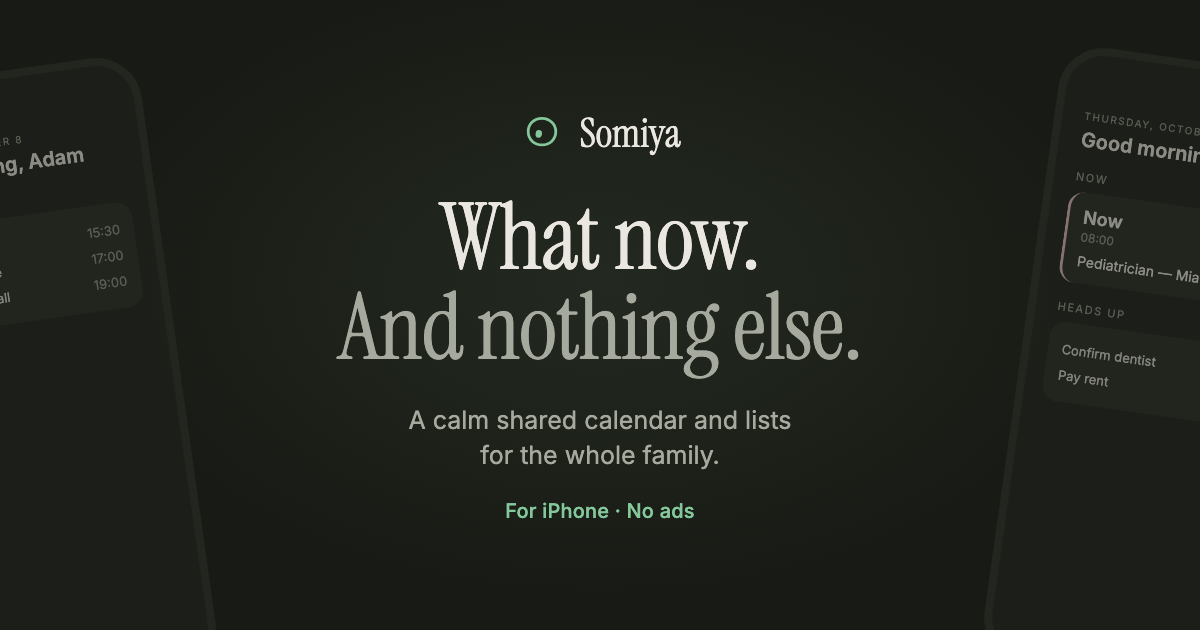
Somiya
Lets your AI assistant read a family calendar, tasks and shopping lists
Somiya is an MCP server for productivity. It runs locally on your machine and is started by your AI client.
- Platforms
- CLI, macOS, Windows
- Runs
- Locally
- Access
- Needs a secret key or token
- Version
- 0.1.1
- Listing updated
Similar MCP servers



Install
Add with the CLI
Run in a terminal
claude mcp add mcp --env SOMIYA_TOKEN='<SOMIYA_TOKEN>' -- npx -y somiya-mcpAdd --scope user to use it in every project, or --scope project to share it in .mcp.json.
Or share it with your project
Add to .mcp.json
{
  "mcpServers": {
    "mcp": {
      "command": "npx",
      "args": [
        "-y",
        "somiya-mcp"
      ],
      "env": {
        "SOMIYA_TOKEN": "<SOMIYA_TOKEN>"
      }
    }
  }
}Add to claude_desktop_config.json
{
  "mcpServers": {
    "mcp": {
      "command": "npx",
      "args": [
        "-y",
        "somiya-mcp"
      ],
      "env": {
        "SOMIYA_TOKEN": "<SOMIYA_TOKEN>"
      }
    }
  }
}
Settings → Developer → Edit Config, then quit and reopen Claude Desktop.
Add to ~/.cursor/mcp.json
{
  "mcpServers": {
    "mcp": {
      "command": "npx",
      "args": [
        "-y",
        "somiya-mcp"
      ],
      "env": {
        "SOMIYA_TOKEN": "<SOMIYA_TOKEN>"
      }
    }
  }
}
Use .cursor/mcp.json in a project to share it with the project.
Add to ~/.copilot/mcp-config.json
{
  "mcpServers": {
    "mcp": {
      "type": "stdio",
      "command": "npx",
      "args": [
        "-y",
        "somiya-mcp"
      ],
      "env": {
        "SOMIYA_TOKEN": "<SOMIYA_TOKEN>"
      }
    }
  }
}
Or put the same entry in .mcp.json at your workspace root to share it.
Add with the CLI
Run in a terminal
codex mcp add mcp --env SOMIYA_TOKEN='<SOMIYA_TOKEN>' -- npx -y somiya-mcpOr add to config.toml
Add to ~/.codex/config.toml
[mcp_servers.mcp]
command = "npx"
args = ["-y", "somiya-mcp"]
env = { SOMIYA_TOKEN = "<SOMIYA_TOKEN>" }Add to your client's MCP settings (most use this shape)
{
  "mcpServers": {
    "mcp": {
      "command": "npx",
      "args": [
        "-y",
        "somiya-mcp"
      ],
      "env": {
        "SOMIYA_TOKEN": "<SOMIYA_TOKEN>"
      }
    }
  }
}
Gemini CLI and Antigravity
Gemini CLI
Add to ~/.gemini/settings.json
{
  "mcpServers": {
    "mcp": {
      "command": "npx",
      "args": [
        "-y",
        "somiya-mcp"
      ],
      "env": {
        "SOMIYA_TOKEN": "<SOMIYA_TOKEN>"
      }
    }
  }
}
Or run: gemini mcp add -s user -e SOMIYA_TOKEN='<SOMIYA_TOKEN>' mcp npx -- -y somiya-mcp
Antigravity
Add to ~/.gemini/config/mcp_config.json
{
  "mcpServers": {
    "mcp": {
      "command": "npx",
      "args": [
        "-y",
        "somiya-mcp"
      ],
      "env": {
        "SOMIYA_TOKEN": "<SOMIYA_TOKEN>"
      }
    }
  }
}
Use .agents/mcp_config.json to add it to one workspace only.
Devin Desktop (formerly Windsurf)
Add to ~/.config/devin/mcp_config.json
{
  "mcpServers": {
    "mcp": {
      "command": "npx",
      "args": [
        "-y",
        "somiya-mcp"
      ],
      "env": {
        "SOMIYA_TOKEN": "<SOMIYA_TOKEN>"
      }
    }
  }
}
On Windows the file is %APPDATA%\devin\mcp_config.json. Use .devin/mcp_config.json to share it with a project.
Cline
Add to cline_mcp_settings.json
{
  "mcpServers": {
    "mcp": {
      "command": "npx",
      "args": [
        "-y",
        "somiya-mcp"
      ],
      "env": {
        "SOMIYA_TOKEN": "<SOMIYA_TOKEN>"
      }
    }
  }
}
Open it from the MCP Servers icon → Configure → Configure MCP Servers.
Zed
Add to Zed settings.json
{
  "context_servers": {
    "mcp": {
      "command": "npx",
      "args": [
        "-y",
        "somiya-mcp"
      ],
      "env": {
        "SOMIYA_TOKEN": "<SOMIYA_TOKEN>"
      }
    }
  }
}
Open it with zed: open settings file. Merge context_servers into the settings you already have.
JetBrains AI Assistant and Junie
AI Assistant
Add to Settings → Tools → AI Assistant → Model Context Protocol (MCP) → Add
{
  "mcpServers": {
    "mcp": {
      "command": "npx",
      "args": [
        "-y",
        "somiya-mcp"
      ],
      "env": {
        "SOMIYA_TOKEN": "<SOMIYA_TOKEN>"
      }
    }
  }
}
The AI Assistant docs only show command and args. If the env block is ignored, use Junie for this server.
Junie
Add to ~/.junie/mcp/mcp.json
{
  "mcpServers": {
    "mcp": {
      "command": "npx",
      "args": [
        "-y",
        "somiya-mcp"
      ],
      "env": {
        "SOMIYA_TOKEN": "<SOMIYA_TOKEN>"
      }
    }
  }
}
Use .junie/mcp/mcp.json to share it with a project.
Kiro
Add to ~/.kiro/settings/mcp.json
{
  "mcpServers": {
    "mcp": {
      "command": "npx",
      "args": [
        "-y",
        "somiya-mcp"
      ],
      "env": {
        "SOMIYA_TOKEN": "<SOMIYA_TOKEN>"
      }
    }
  }
}
Use .kiro/settings/mcp.json to add it to one workspace only.
Using several servers? Build one config file with the MCP config generator.
Configuration
SOMIYA_TOKENToken created in the Somiya app under Settings → AI accessRequired
About Somiya
Somiya's server is built around one rule: your AI proposes, only you confirm. The assistant can read what you can see in the app, and it can file a suggested task or shopping item, but a suggestion is only a line of text with two buttons until you confirm it in the app. Unanswered suggestions are dropped after a day.
The server runs on your own machine with Node 20 or newer and talks to the Somiya API with a token you create under Settings > AI access. You choose scopes when creating it: two read scopes are on by default and suggestions are off. Tools outside the token's scopes are not advertised, so the assistant never sees one it would be refused. Tokens expire after 90 days and can be revoked at any time.
Editing and deleting are deliberately not offered, even as suggestions, and there is no setting to let the assistant act without confirmation. A public read-only token for a made-up family lets you try it without an account, though it is shared and may rate-limit.
Tools this server provides (8)
Taken from the project documentation; the running server may differ.
From the tool list in its README, going by the names, 4 of 8 tools read data; 4 names don't say.
From the server's own tool labels and tool names; not verified by us.
- somiya_whats_next
- Events and due or overdue tasks for the next 7 days.
- somiya_get_familyName suggests: reads
- Member names and roles.
- somiya_whoami
- This token's label, scopes, role and expiry.
- somiya_search_eventsName suggests: reads
- Events between two timestamps.
- somiya_list_tasksName suggests: reads
- Open family tasks.
- somiya_list_shoppingName suggests: reads
- Shopping lists and their items.
- somiya_suggest_task
- Files a task for you to confirm in the app; creates nothing.
- somiya_suggest_shopping_item
- Files an item for you to confirm in the app; creates nothing.
What it does
- Weekly overview
- Returns events and due or overdue tasks for the coming seven days.
- Event search
- Finds events between two dates with recurrences expanded.
- Tasks and shopping lists
- Lists open family tasks and the items on shopping lists.
- Suggestions you confirm
- Files a task or shopping item that only takes effect once you confirm it in the app.
- Scoped tokens
- Each token carries chosen scopes, and tools outside them are hidden from the assistant.
- Runs locally
- The server process runs on your machine, so Somiya's servers never see your AI conversation.
Good for
- Ask what the family has on this week
- Check which tasks are overdue and who owns them
- Add an item to the shopping list after researching something
- Have an assistant propose a task from a forwarded email for you to approve
- Try the read-only demo family before setting up your own
Pricing
Pricing unknown
Server pricing not published; the demo token is free to use
Prices change. Check somiya.app before you buy.
Somiya FAQ
Can the assistant delete or edit things?
No. Editing and deleting are not offered, even as suggestions.
What do I need to run Somiya?
Node 20 or newer, and a token created in the Somiya app under Settings > AI access.
Does Somiya see my conversation?
The README says it does not: the server runs on your machine and talks only to the Somiya API. Your AI provider still sees what you send it.
How long does a token last?
Tokens expire after 90 days and can be revoked from the screen where you created them.
How do I add Somiya to Claude Code?
Run this command in your terminal: claude mcp add mcp --env SOMIYA_TOKEN='<SOMIYA_TOKEN>' -- npx -y somiya-mcp
What are the best alternatives to Somiya?
The closest alternatives to Somiya are Ha MCP, Concord MCP, Open Sunsama, Dayfile.app and note1.
Where this comes from
- Description: written from the project's README and the project's website.
- Install steps: from the official MCP Registry entry.