Screencast MCP
Let a coding agent record the Windows screen, review frames and edit video with ffmpeg
- Pricing
- Free
- Platforms
- Windows, CLI
- Runs
- Locally
- Version
- 0.52.0
- Listing updated
- 3 days ago
About Screencast MCP
Screencast MCP is a free MCP server for design and media. It runs locally on your machine and is started by your AI client.
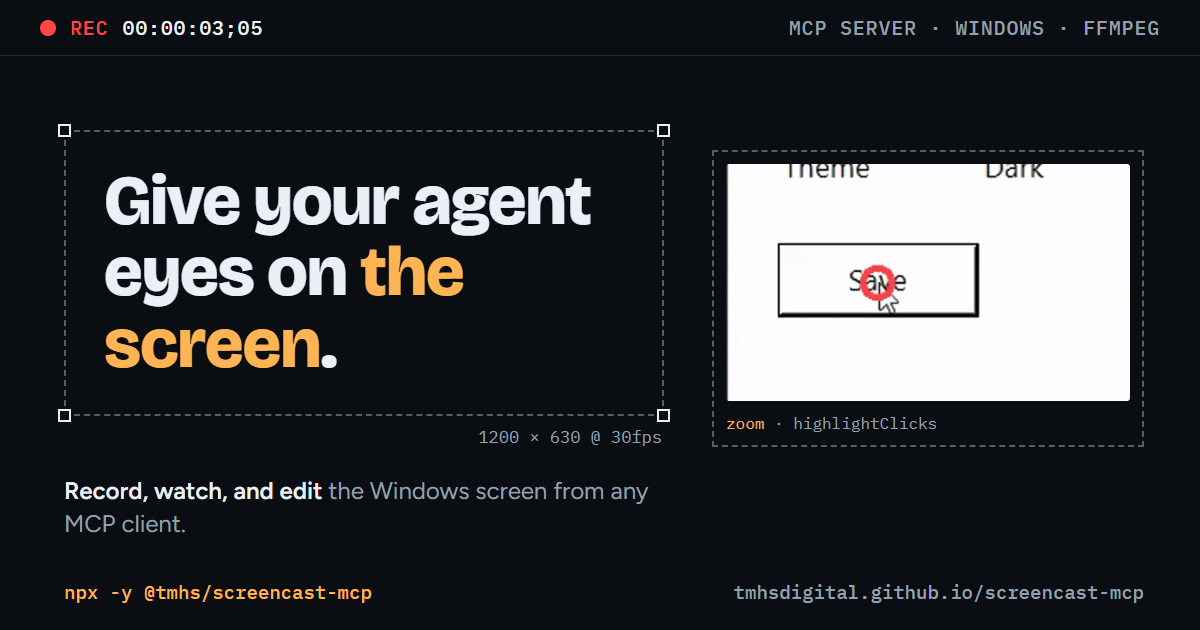
Where tools like OBS expect a person at the controls, here the agent starts and stops recordings, samples the footage into frames it can look at, and edits the result through typed tools. Recording can target the whole desktop, one monitor, a window by title or a pixel region, with optional system audio and an input event log of clicks, scrolling and typing bursts. Nothing records on its own; every capture is an explicit tool call.
The README counts 59 tools behind ffmpeg and ffprobe, grouped into capture, watch, edit, produce and audio toolsets that can be limited with SCREENCAST_TOOLSETS. Edits include trimming, cropping, redaction, annotation, zooming toward clicks, and export for GitHub or social. Capture is Windows 10 or 11 only; watch and edit tools run anywhere ffmpeg runs, and FFmpeg 8 is needed for transcription.
It has no cloud service or telemetry. Optional controls include allowed folders, a recording time cap and a confirmation prompt for every live capture. The licence is CC BY-NC-ND 4.0, free for non-commercial use.
Install
Run in a terminal
claude mcp add screencast-mcp -- npx -y @tmhs/screencast-mcpAdd to claude_desktop_config.json
{
  "mcpServers": {
    "screencast-mcp": {
      "command": "npx",
      "args": [
        "-y",
        "@tmhs/screencast-mcp"
      ]
    }
  }
}Add to ~/.cursor/mcp.json
{
  "mcpServers": {
    "screencast-mcp": {
      "command": "npx",
      "args": [
        "-y",
        "@tmhs/screencast-mcp"
      ]
    }
  }
}Add to .vscode/mcp.json
{
  "servers": {
    "screencast-mcp": {
      "type": "stdio",
      "command": "npx",
      "args": [
        "-y",
        "@tmhs/screencast-mcp"
      ]
    }
  }
}
Add to ~/.codeium/windsurf/mcp_config.json
{
  "mcpServers": {
    "screencast-mcp": {
      "command": "npx",
      "args": [
        "-y",
        "@tmhs/screencast-mcp"
      ]
    }
  }
}
Add to your client's MCP settings (most use this shape)
{
  "mcpServers": {
    "screencast-mcp": {
      "command": "npx",
      "args": [
        "-y",
        "@tmhs/screencast-mcp"
      ]
    }
  }
}
Configuration
SCREENCAST_HOMEWhere recordings, frames, screenshots, and edits are written (default <homedir>/.screencast-mcp)SCREENCAST_ALLOWED_DIRSSemicolon-separated folders tools may read from and write to besides SCREENCAST_HOME; when set (or when the client sends roots), files elsewhere are refused. Also allows overwriting files in these foldersFFMPEG_PATHPath to ffmpeg if it is not on PATH (ffmpeg and ffprobe are required)FFPROBE_PATHPath to ffprobe if it is not on PATHSCREENCAST_WHISPER_MODELwhisper.cpp model file (ggml-*.bin) used by transcribe when a call passes no modelSCREENCAST_MAX_RECORDING_SECDefault recording cap in seconds when a call sets no maxDurationSec (default 3600; 0 disables it)SCREENCAST_JOB_TIMEOUT_MSOverride the edit job timeout in milliseconds (default scales with the media length)SCREENCAST_RETENTION_DAYSAt startup, delete screenshots, frames, leftover raw event logs, and index_recording indexes older than this many days (never recordings or edits; off by default)SCREENCAST_PS_TIMEOUT_MSLimit in milliseconds for the PowerShell helpers that list monitors and windows and run OCR (default 20000; OCR 60000)SCREENCAST_CONFIRM_CAPTUREConfirm each live capture through MCP elicitation: auto (default) asks when the client supports it, 1/always also refuses captures in clients that cannot ask, 0/off never asksSCREENCAST_TOOLSETSComma-separated toolsets to load: capture, watch, edit, produce, audio (doctor and get_media_info are always on; default all)SCREENCAST_DEBUG_JOBS1 traces each edit job on stderr (start, a heartbeat every 30 s, and the end) to diagnose a stuck edit; default off
Tools this server provides (17)
Taken from the project documentation; the running server may differ.
- start_recording
- Start a background screen recording
- stop_recording
- Stop a recording and return the path and duration
- delete_recording
- Delete a finished recording with its sidecars
- pause_recording
- Pause a recording
- resume_recording
- Resume a paused recording
- save_replay
- Save the last N seconds of a replay buffer to an mp4
- list_sessions
- List recording sessions
- get_session
- Inspect one recording session
- read_events
- Read input events of a recording
- add_marker
- Mark a labelled moment on a recording
- screenshot
- Capture one PNG of the screen, monitor, window or region
- get_media_info
- Probe a media file with ffprobe
- list_audio_devices
- List DirectShow audio devices
- list_video_devices
- List DirectShow cameras
- sample_frames
- Sample a recording into frames
- transcribe
- Transcribe audio with whisper
- doctor
- Report ffmpeg version, filters, devices and missing pieces
What it does
- Agent-driven recording
- Start, pause, stop and save replay buffers for screen or window capture.
- Frame sampling
- Turn footage into frames the model can view, with scene-change mode.
- Input event log
- Read clicks, scrolls and typing bursts with video timestamps.
- ffmpeg edits
- Trim, crop, redact, annotate, zoom and export clips.
- Capture guards
- Allowed folders, recording caps and optional confirmation prompts.
- Toolset selection
- Load only the capture, watch, edit, produce or audio tools.
Good for
- Record a bug reproduction and attach a GIF to a pull request
- Have the agent verify a UI change by watching its own recording
- Make a README demo clip with click highlights
- Redact sensitive regions before sharing a video
- Transcribe a recorded session
Pricing
Free
Free for non-commercial use under CC BY-NC-ND 4.0
Prices change. Check tmhsdigital.github.io before you buy.
Screencast MCP FAQ
Does it work on macOS or Linux?
Capture is Windows-only; watch, edit and produce tools run anywhere ffmpeg runs.
What do I need installed?
Windows 10 or 11, Node.js 22+, and FFmpeg 8 or newer on PATH.
Can I use it commercially?
The README states CC BY-NC-ND 4.0 and free for non-commercial use.
How do I set it up in Claude Desktop?
Download the .mcpb file from the latest release, or run npx -y @tmhs/screencast-mcp setup.
Is Screencast MCP free?
Yes. Screencast MCP is free to use.
How do I add Screencast MCP to Claude Code?
Run this command in your terminal: claude mcp add screencast-mcp -- npx -y @tmhs/screencast-mcp
What are the best alternatives to Screencast MCP?
The closest alternatives to Screencast MCP are REA, HyperFrames by HeyGen, Codebase Memory, GitHub and Serena MCP: the IDE for your agent.
Alternatives to Screencast MCP

REA
MCP serverCLI and MCP server that lets coding agents reverse engineer apps and binaries
Runs locally- Open source
- 464K GitHub stars
- Developer tools

HyperFrames by HeyGen
MCP serverHosted MCP connector for creating and rendering videos from HTML through AI chat
- Remote
- Freemium
- 85.3K GitHub stars
- Design and media

Codebase Memory
MCP serverLocal MCP server that builds a code knowledge graph for AI coding agents
Runs locally- Open source
- 48.7K GitHub stars
- Knowledge and memory

GitHub
MCP serverOfficial MCP server connecting AI assistants to GitHub repos, issues and workflows
Not checked yet- Remote
- Open source
- 34.5K GitHub stars
- Developer tools

Serena MCP: the IDE for your agent
MCP serverMCP toolkit giving coding agents symbol-level code retrieval and editing
Runs locally- Open source
- 31.5K GitHub stars
- Developer tools

XERJ
MCP serverLocal search engine for AI agents with cited answers over your code and docs
Runs locally- Open source
- 19.2K GitHub stars
- Knowledge and memory